AI failure detection
Printer Buddy's own models look at the printer's camera during prints and score how likely each problem is.
What it looks for
Spaghetti, warping, first-layer problems, stringing, blobs, cracks and other failures.
Spaghetti, warping, first-layer problems and other failures trigger alerts (and auto-pause, if it's on). Stringing, blobs and cracks are only shown as warnings.
Models
| Model | Runs on | Notes |
|---|---|---|
| lite | Any host, 32-bit or 64-bit, very little memory | The smallest model, a bit less accurate. Runs without the AI libraries the others need |
| basic | A Raspberry Pi (64-bit) | Pick this on a Pi |
| heavy | A strong PC or a GPU | The most accurate |
64-bit for basic and heavy
basic and heavy need a 64-bit system (Raspberry Pi OS 64-bit, or any x86_64 PC). lite runs on 32-bit systems too.
NVIDIA GPU
heavy can use an NVIDIA GPU. If the host has a working NVIDIA driver (nvidia-smi works), the installer sets up the GPU version of the AI libraries. The GPU also needs NVIDIA's CUDA and cuDNN libraries installed on the host; without them it runs on the CPU. Settings → AI shows what the model runs on.
Pick one with AI detection in the installer, or switch it later in the Updates list (home page ☰). Every model release is tested on the same 1,000 photos; the scores are in each release's notes under Model check. With the v1.5 models, basic is right 93% of the time and catches 91% of failures; heavy is right 95% of the time with only 3% false alarms.
When it alerts
It checks the camera every few seconds while a printer prints, and only alerts after several checks in a row look bad, so one odd frame doesn't set it off. Change these in the home page's Settings → AI, or on a printer's Settings tab under AI Detection:
| Setting | Choices | Default |
|---|---|---|
| Alert when a problem scores at least | 40-80% | 60% |
| Check the camera every | 5, 10, 20, 30 s | 10 s |
| …for this many checks in a row | 1, 2, 3, 5 | 3 |
| Then wait before alerting again | 5, 10, 20, 30 min | 10 min |
Higher threshold or more checks in a row = fewer false alarms, but a failure is caught a little later.
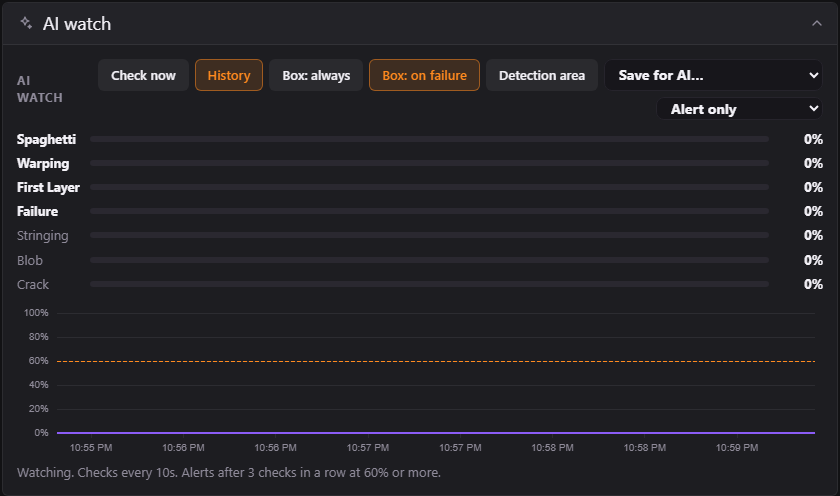
Per printer (AI watch on the printer page) you choose Alert only, Alert + auto-pause or Off.
The failure box
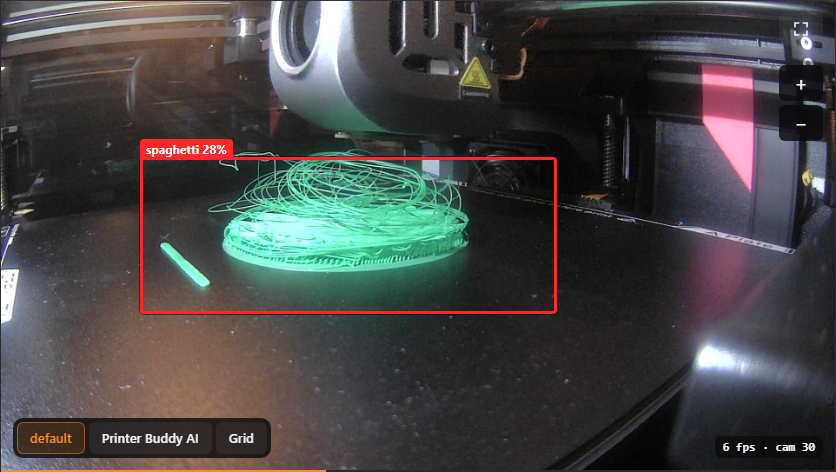
When the AI thinks something's wrong, a red box on the camera shows where. Box: on failure (default) only works it out when a failure is likely; Box: always draws it on every check (uses more CPU). Turn both off to save CPU on older Pis.
Score history
Click History in the AI watch section to see a chart of the highest problem score from each check during the current print. The dashed line is your alert threshold, and a red line marks each alert. It keeps up to 4,320 checks per print (12 hours at the default 10 s).
Detection area
By default the AI looks at the whole picture. To make it ignore clutter around the bed, click Detection area in the AI watch section and drag a box over the camera picture. Clear area goes back to the whole picture.
Helping train it
- When it alerts, answer Was it really a failure? — false alarms are the most useful.
- Save for AI… saves the current camera view with a label.
- Settings → AI shows saved photos and how often the AI was right on your printers. Turn on Help improve the AI to send labelled photos for training.