Remote access
By default Printer Buddy only works on your home network. Remote access lets you check a printer from anywhere with a share link.
Turning it on
Pick Remote access = on in 2) Change setup and go back. The installer then installs a secure tunnel (cloudflared), registers it and starts it.
Turn it off again and the installer asks whether to remove the tunnel. Share links stop working from outside once it's removed.
Share links
Share a printer's view with someone else. Links look like:
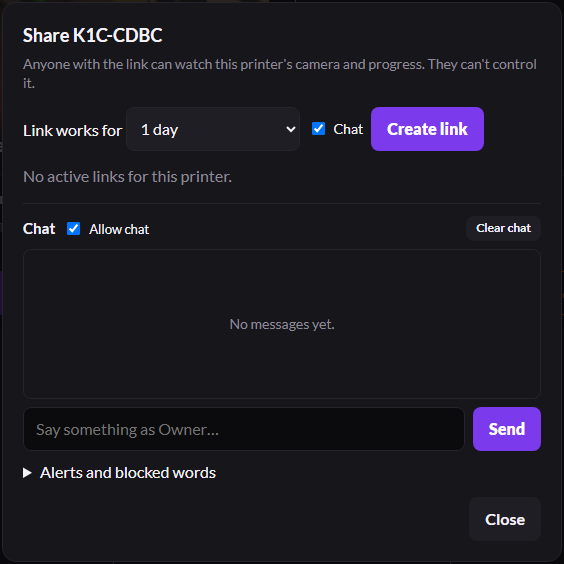
To make one, open the menu on a printer's card on the home page and choose Share. It only shows when remote access is on. Pick how long the link works:
- 1 hour, 1 day or 7 days
- until the print ends — only offered while a print is running. The link turns itself off when the print finishes, is cancelled or fails.
- until I turn it off
Untick Chat if you want a link with no chat box at all. Then Create link, and Copy it. The list shows each link and when it stops working, and Turn off ends one straight away.
The people you send it to see the printer's camera, progress, time left, layer and temperatures. They can't control anything. On the page, the full screen button in the corner of the camera fills the screen (double-click does the same) and the same button leaves it.
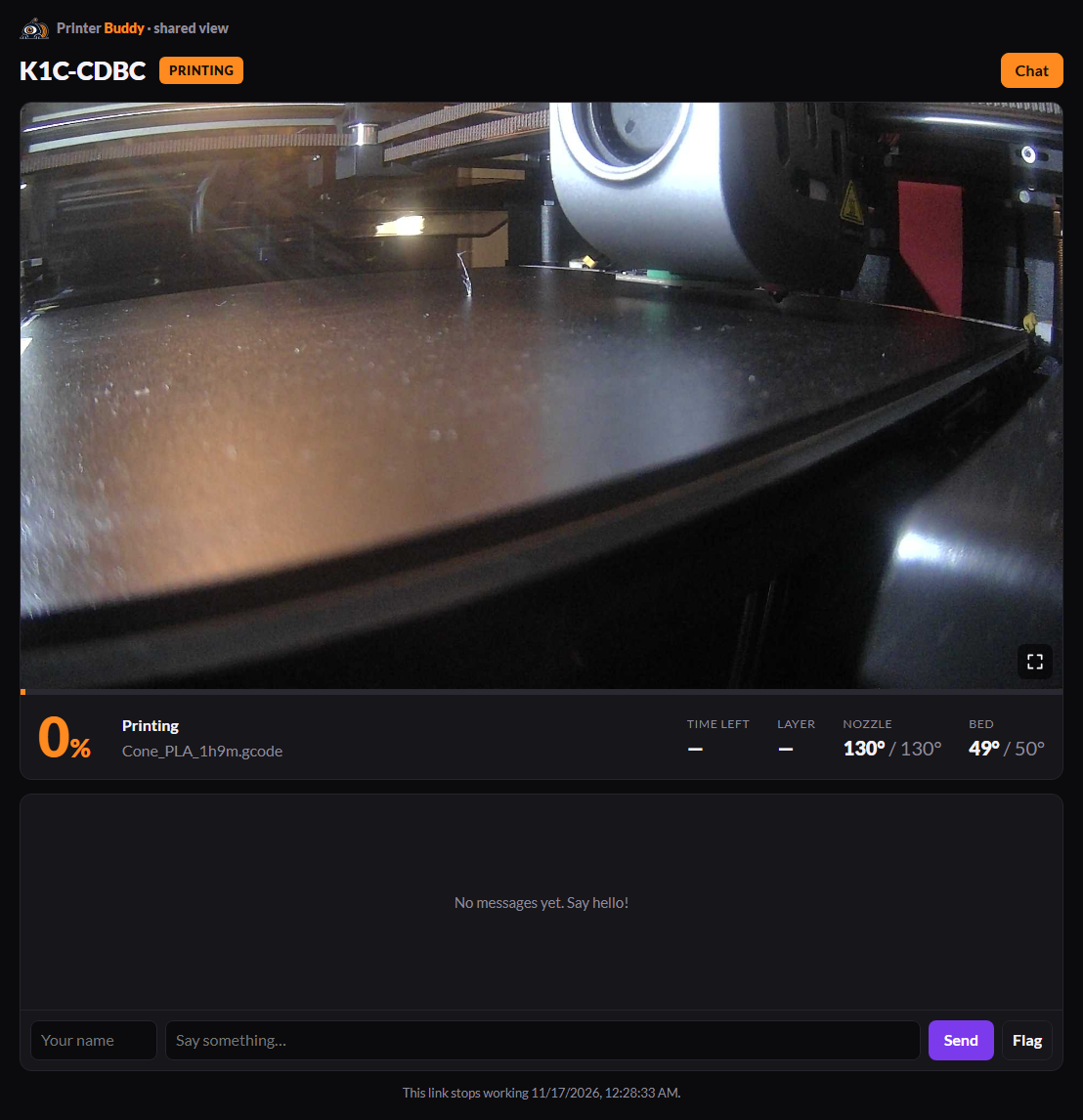
Chat
Everyone watching a printer through a share link can chat. The page has a Chat button next to the printer's name: click it to open the chat box, and click it again to close it. Each viewer types a name (it's remembered in their browser) and a message, and everyone watching that printer sees it, whichever of your links they used.
You see the same chat in the Share window in Printer Buddy and can write in it as Owner. Clear chat empties it for everyone. The Allow chat tickbox there switches chat on or off for that printer: it's on by default, and turning it off hides the Chat button on every share link for that printer and clears the chat.
- A link made with Chat unticked never shows the chat button, and the list marks it "no chat".
- Messages are plain text, up to 300 characters, one every 2 seconds per viewer.
- The last 100 messages are kept in memory. They're gone when Printer Buddy restarts.
- A link that's turned off or has expired loses the chat too.
Push notifications
Open Alerts and blocked words in the chat part of the Share window and pick Notify me with a push. It uses the notification service you set up in Settings.
- Never: chat stays quiet. You only see it when you open the window.
- Only when a viewer flags the print (the default).
- For every message: at most one push every 20 seconds, saying how many more came in.
Flag button
Next to Send, viewers have a Flag button for when they spot something the AI missed. It asks them to confirm, then sends you a push with a camera picture, using whatever they typed (up to 100 characters) as the reason. The flag also shows in the chat. Flags always push unless alerts are set to Never. A viewer can flag once a minute, and a printer takes at most 5 flags in 10 minutes.
Blocked words
The same section has a list of words that aren't allowed, one per line. A message or name containing one is refused and the viewer is told so, and they can't send or flag anything for 10 seconds. You see the attempt in your chat window, in grey, with the name and what they typed. Other viewers never see it, and you aren't sent a push for it. It's saved in chat-blocklist.txt next to the database, so you can edit that file instead if you prefer. On top of your list, a built-in list of common swear words, insults and slurs is blocked. Untick Also block the built-in list of swear words and slurs to turn it off. Changes to the alerts and the word list take effect when you press Save. It can't catch every spelling, and it only blocks whole words, so ordinary words like "class" or "assist" are fine.
wordblocks that whole word only,two wordsblocks the phrase.word*blocks any word that starts with it,*wordany word that ends with it, and*word*blocks it anywhere, even inside other words.- Capitals, accents, look-alikes (
1fori,0foro,@fora) and spaces between letters (b a d) are caught.
Who can see what
There's no login. Each share link has its own long, secret code, and anyone with the link can see that printer, so only send it to people you trust. Links can be set to expire, and Turn off stops a link straight away.