Camera streamer
Printer Buddy's camera streamer is a replacement for crowsnest and camera-streamer. It streams your USB, Pi and network cameras and is set up, updated and controlled from Printer Buddy like every other part.
Tiers
| Tier | What it does |
|---|---|
| off | Streamer not installed |
| light | USB cameras, MJPEG (mjpg-streamer) |
| basic | USB cameras, MJPEG (ustreamer) |
| advanced | Everything above, plus Pi cameras, network cameras (RTSP / IP) and WebRTC (go2rtc); needs more CPU |
Any number of cameras at every level.
Pick it with Camera streamer in the installer's 2) Change setup. It first asks whether you want to use it at all, then a level, then where the camera is plugged in (see Install choices), or switch tiers in the Updates list (home page ☰). It runs as its own service, printer-buddy-streamer, which you can restart or stop from the home page ☰ drawer.
Cameras
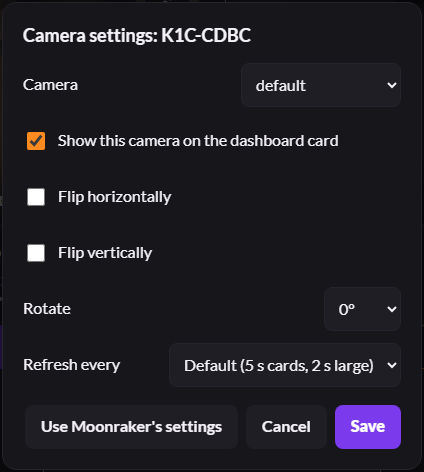
Each printer's cameras come from Moonraker. On a printer page, the camera panel's Cameras button adds or edits Moonraker cameras. In Settings → Cameras (Camera Settings) you can flip or rotate each one, and tick Show this camera on the dashboard card for the camera the AI and timelapses use.
On the printer
If the camera is plugged into the printer itself, run the streamer there. In Change setup pick Camera streamer, answer Yes, pick a level, then The printer. The installer offers two ways to install it:
- Copy and paste — it shows one command to run over SSH on the printer, for example
curl -fsSL https://raw.githubusercontent.com/printer-buddy/print-buddy-streamer/main/install-printer.sh | bash -s -- basic. - Guided SSH — it asks for the printer's IP and login user (default
pi) and runs the same command over SSH. SSH asks for the printer's password; nothing is saved.
The installer doesn't ask for network camera addresses. Add each one as device: in the streamer's settings after the install, or give the addresses when you run the command by hand, after the level, for example ... | bash -s -- advanced rtsp://192.168.0.50/stream.
On the printer, the command installs what the level needs, downloads the streamer to ~/print-buddy-streamer, starts it as the printer-buddy-streamer service and adds the cameras to the printer's Moonraker. It's also added to Moonraker's update manager, so you can update and restart it from Fluidd or Mainsail. Its settings are in printer_data/config/print-buddy-streamer.conf.
Printer Buddy then sees the cameras through Moonraker like any other camera.
Note
The printer needs Debian-based Linux with apt and Python 3.9 or newer. A printer without apt can't run it; use the printer's own camera service there.
Cameras start at port 8081 so they don't clash with Printer Buddy on 8080.
It replaces Crowsnest
That's why the installer asks first. The streamer does the job of Crowsnest or any camera service already on the printer. The installer doesn't stop or remove the old service. If you switch to the streamer, stop the old one yourself so two camera services aren't running side by side.