Home page
The home page shows every printer you've added.
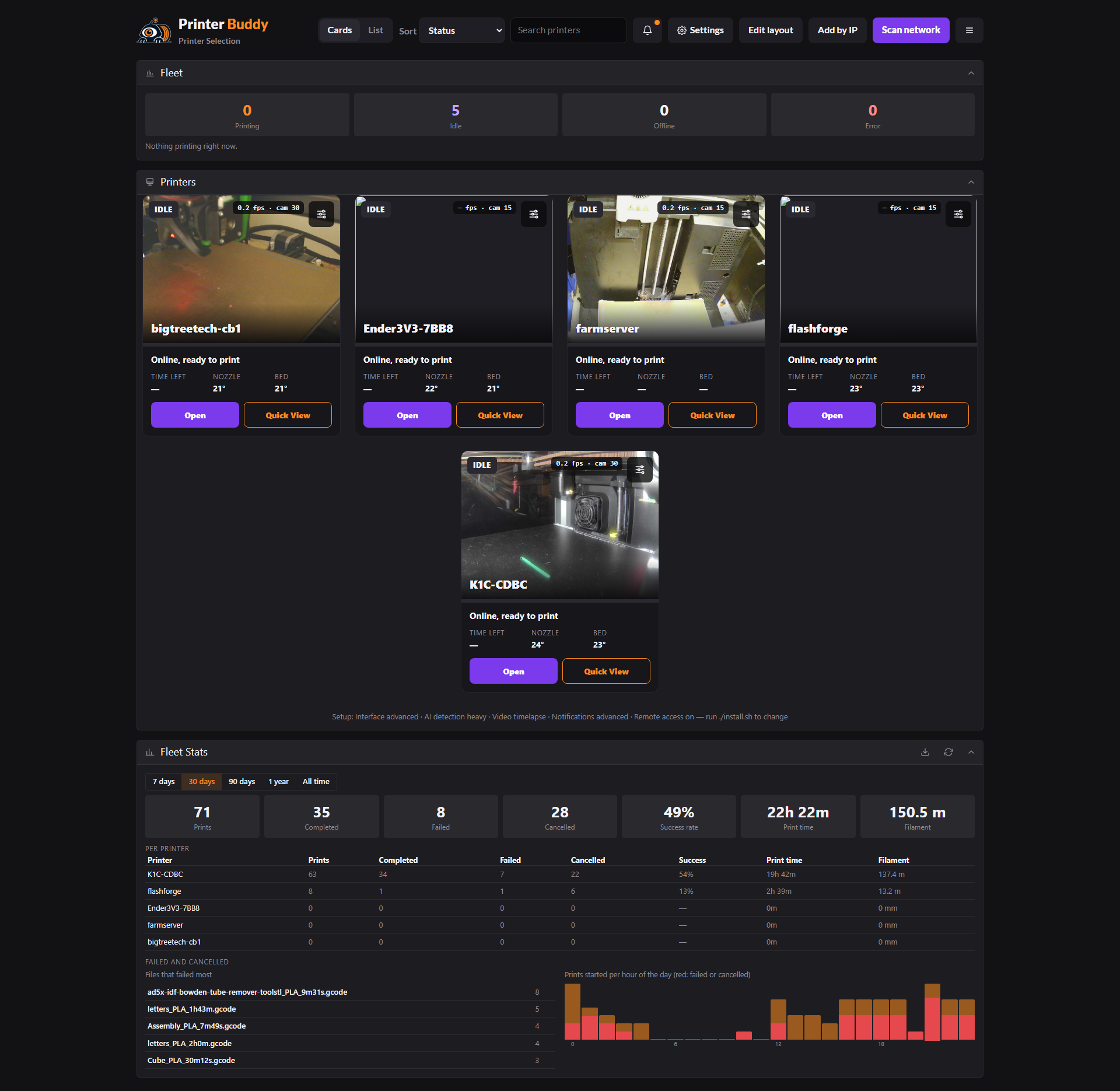
Printer cards
Each card shows the printer's state (printing, paused, idle, offline, error), the file, progress, time left, nozzle and bed temperatures and the camera. Its Open button opens the printer page, and Quick View opens it in a pop-up.
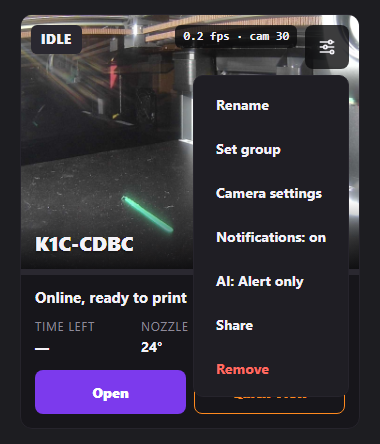
Views and sorting
- Sort by status, name, progress or your own order (drag the cards; advanced interface).
- Search to filter by name.
- List view and groups (advanced interface) for lots of printers.
Quick View
Quick View on a card opens the printer in a pop-up without leaving the home page — handy for a quick look at the camera and progress.
Fleet Stats
The Fleet Stats panel adds up every printer's print history for the last 7, 30 or 90 days, a year, or all time:
- Prints, Completed, Failed, Cancelled, Success rate, Print time and Filament.
- A table with the same numbers for each printer.
- Failed and cancelled: the files that failed most, and a chart of prints started per hour of the day with the failed part in red.
- The download button saves the prints in the chosen time range as a CSV file.
A printer that's offline isn't counted; the panel says which.
Editing the layout
Edit layout lets you add, move, resize and remove panels on the home page, the same way as on printer pages.
Top bar
- News (bell) — Printer Buddy news and notices from your printers (like Moonraker warnings).
- Settings — alerts, AI, look and about.
- ☰ — the Printer Buddy drawer: restart, host power, services and updates.
- Add by IP and Scan network — add printers.